Record and export MQTT messages
Enable disk history, load recorded messages and download a topic’s current history as JSON.
Before you start
Connect to a test broker and subscribe to a topic with incoming messages. The screenshots use walkthrough/recorded/temperature.
1. Enable disk recording
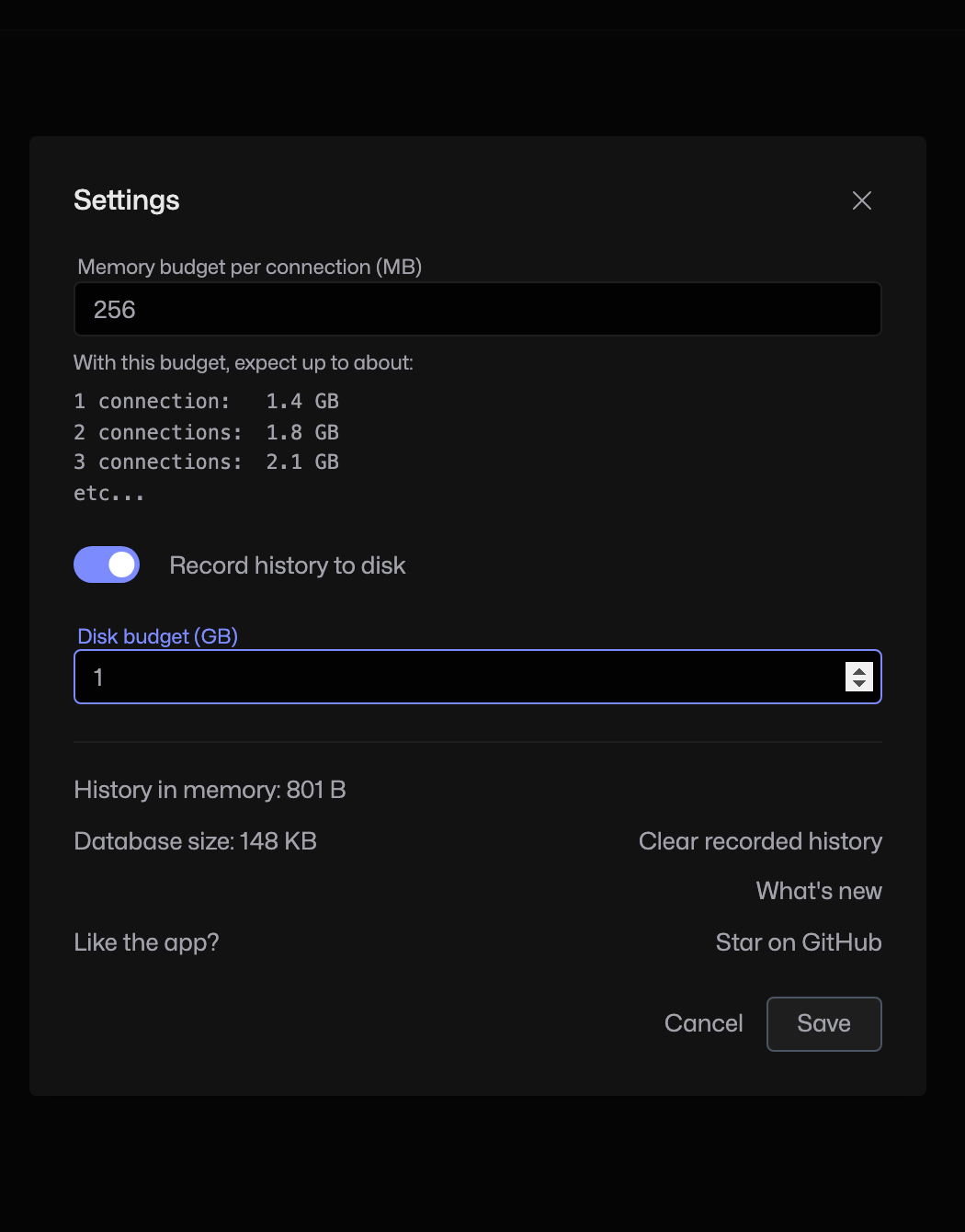
Open the top-right Settings cog. Turn on Record history to disk, set a Disk budget (GB), then click Save. Recording applies to messages received while it is enabled.
2. Load recorded history
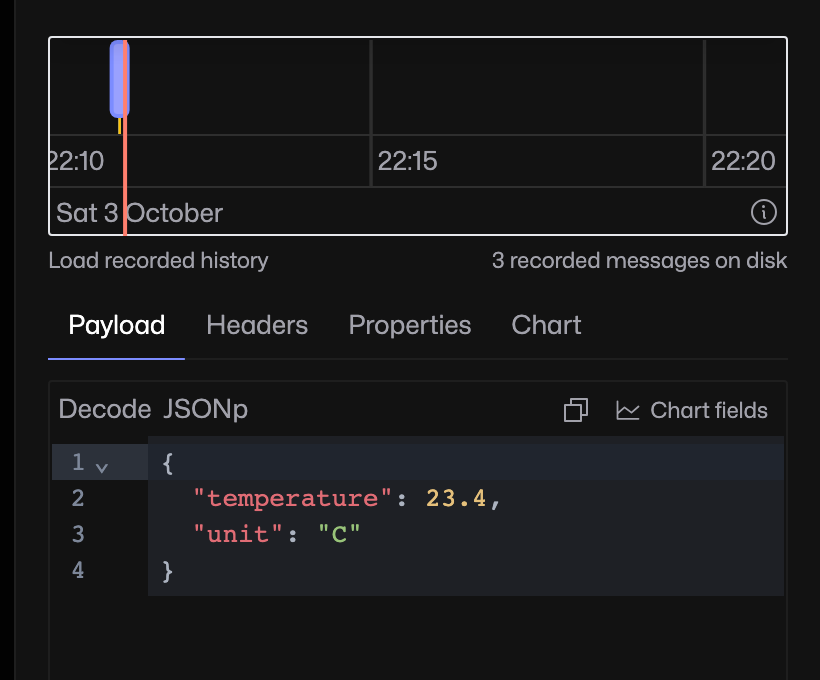
Receive a few messages, select their topic, then click Load recorded history below the timeline. Use the timeline to inspect the stored readings.
3. Export the topic
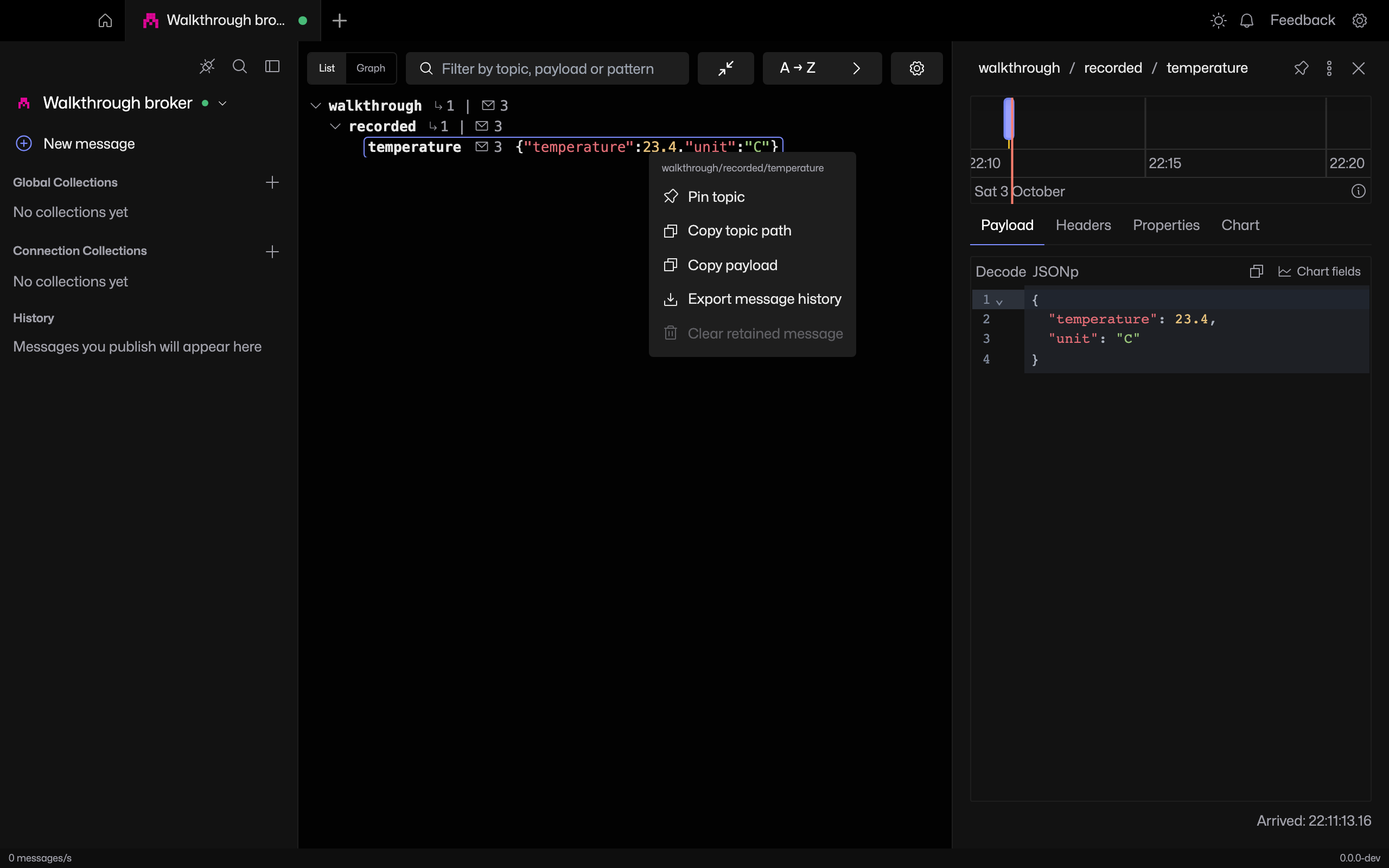
Right-click the topic in List and choose Export message history. In the web UI, the browser downloads a JSON file. Each entry includes its topic, payload, QoS, retain flag and arrival time.
What the export contains
Export uses the topic’s current in-memory history. Loading recorded history does not turn it into an export of the full disk archive. Disk and memory budgets can remove older entries, so keep the downloaded file if you need a separate copy.