Switch between light and dark mode
Change the app theme and keep your choice for the next session.
Before you start
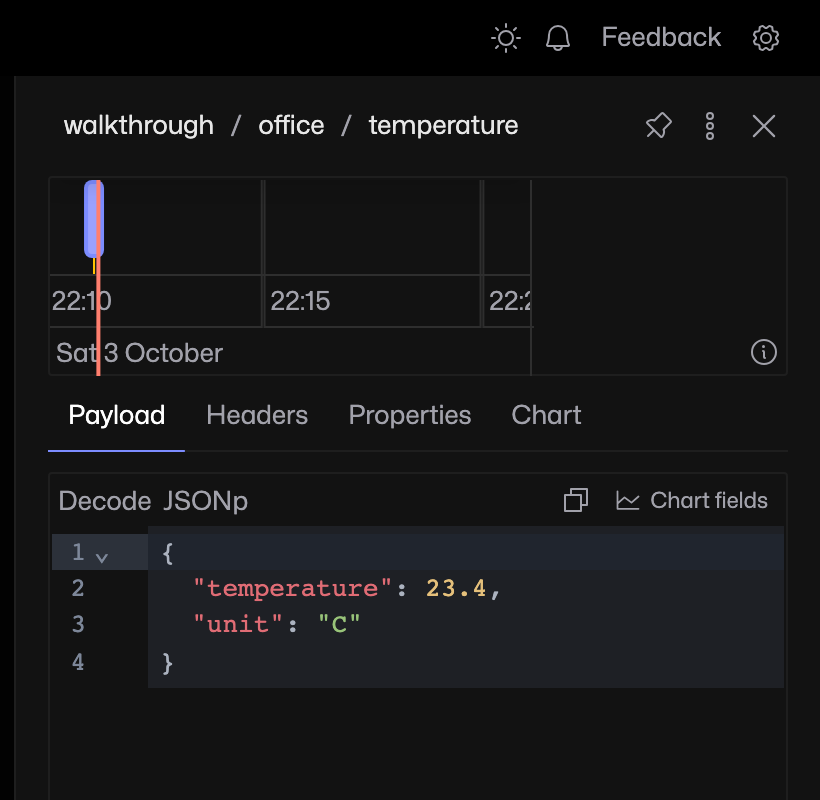
Open MQTT Viewer. The theme button is in the top-right corner of the app, beside notifications and Feedback.
1. Choose light mode
Click the sun button, labelled Light mode when you hover over it. The topic tree, editor and other panels switch to the light palette.
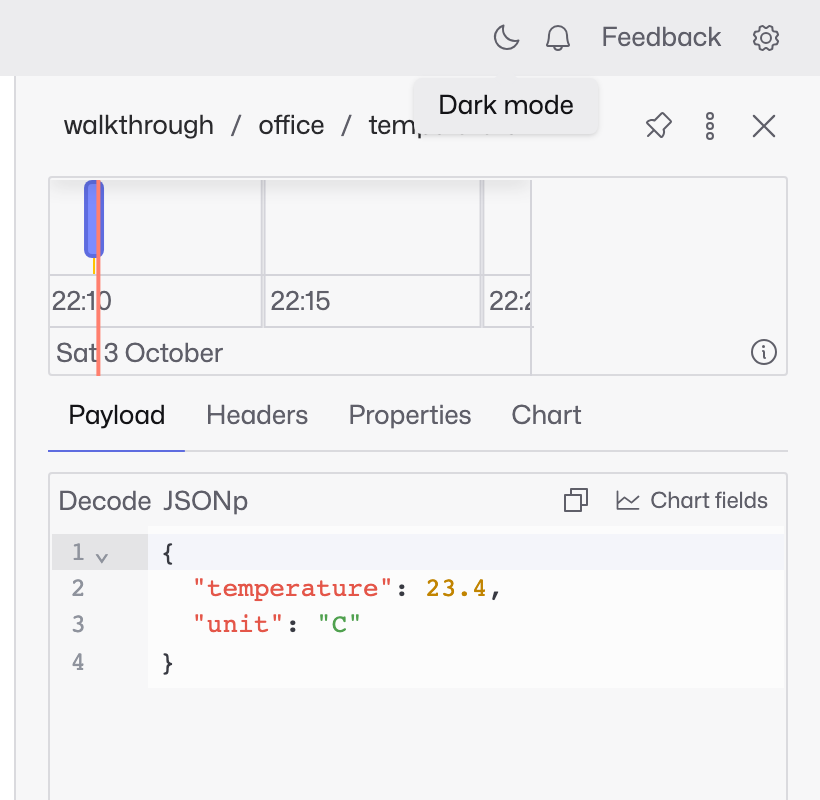
2. Switch back to dark mode
Click the moon button, labelled Dark mode, to return to the dark palette. Your choice is saved. In the web UI, the preference belongs to this browser and site.
If the theme resets
Check whether the browser is clearing site data or using a private session. The app saves your selection locally; it does not follow your operating-system theme automatically.