Find saved and published messages
Find a reusable message by its name, topic or contents.
Before you start
First save a message in a collection or publish a message from this connection. Search matches saved message names, topics, payloads and user properties; publish-history matches use topic, payload and user properties.
1. Open message search
Click the magnifying glass labelled Search messages at the top of the connection sidebar. This searches saved collections and publish history, not received message history.
2. Enter a search term
Type a word or value into Search topic, payload, or headers. The example searches setpoint. Matching saved messages appear under Collections; sent messages appear under Previously published.
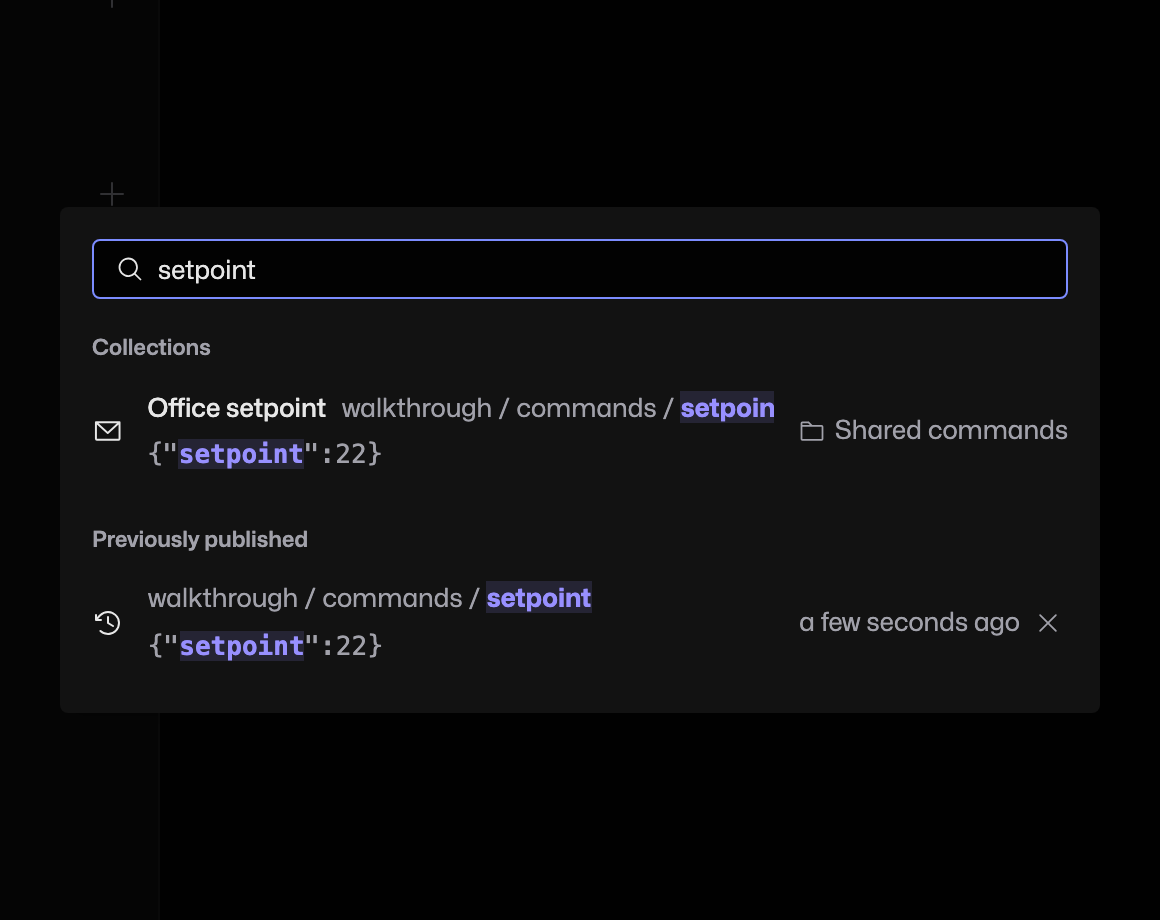
3. Open a result
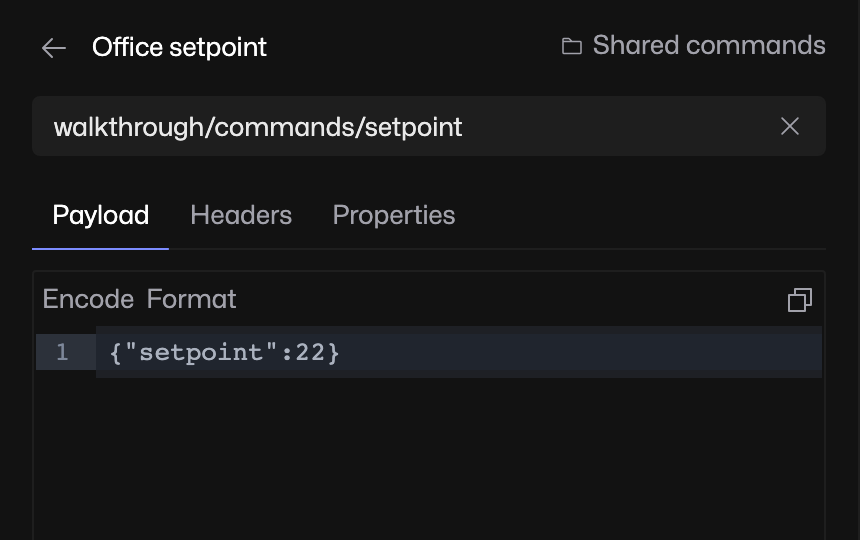
Click a matching row. The message opens in the editor with its topic and payload. Check the current connection before pressing Publish.
If there are no matches
Clear or shorten the query. A message received from another client is not automatically added to publish history. To narrow received topics and their latest payloads, use the topic tree’s filter instead.