Filter and pin MQTT topics
Narrow a busy topic tree and keep a useful branch in reach.
Before you start
A connected broker must have sent some topics covered by your subscriptions. This example uses office, kitchen and workshop readings under walkthrough/.
1. Filter the received topics
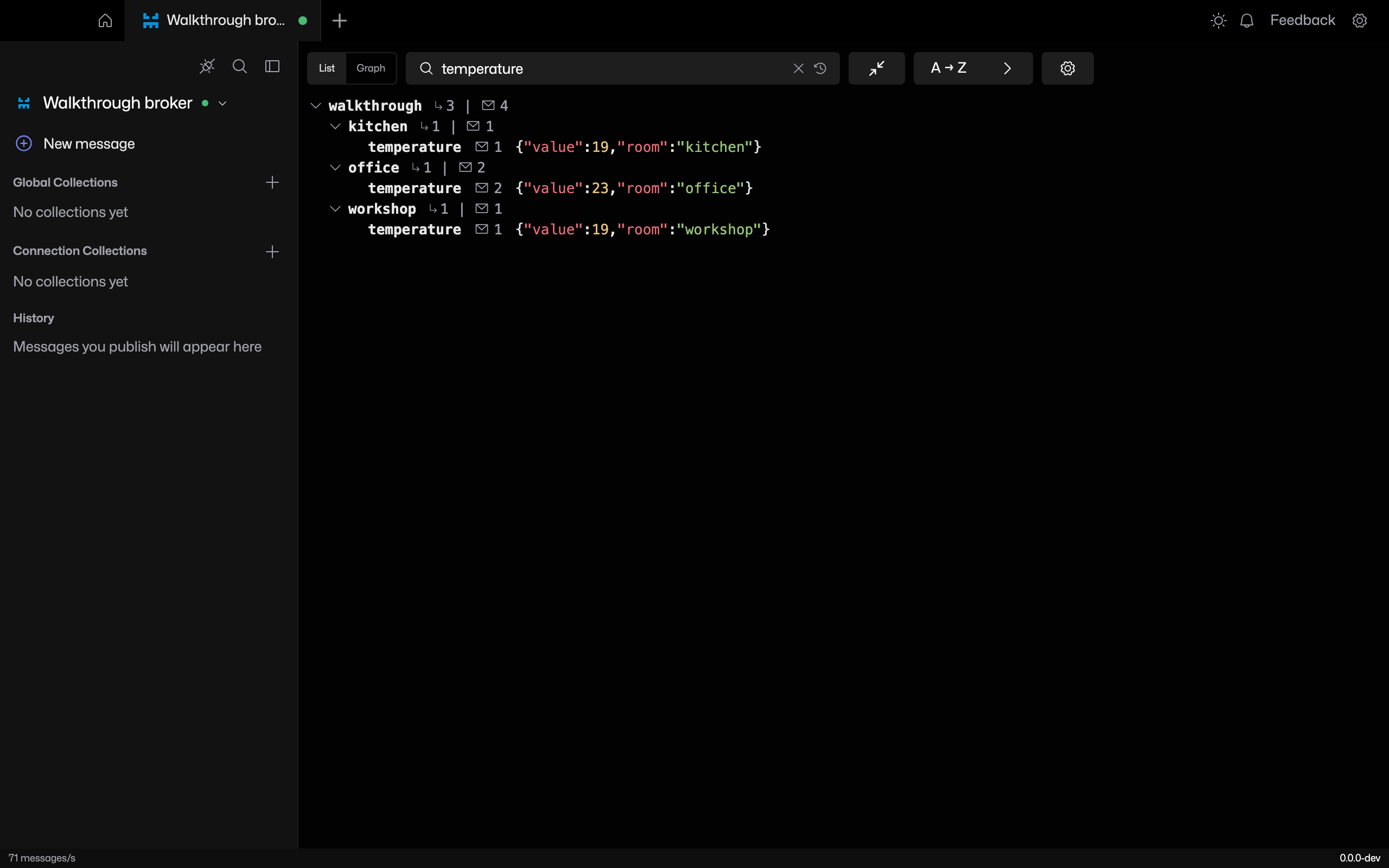
In List, type temperature into Filter by topic, payload or pattern. Expand the matching branches to see their topics. The filter searches topics and their latest payloads.
2. Use a topic pattern
Enter walkthrough/office/+ to keep one level of topics below that branch. Clear the filter to restore the tree. Filtering changes the view; your broker subscriptions stay the same.
3. Pin the branch
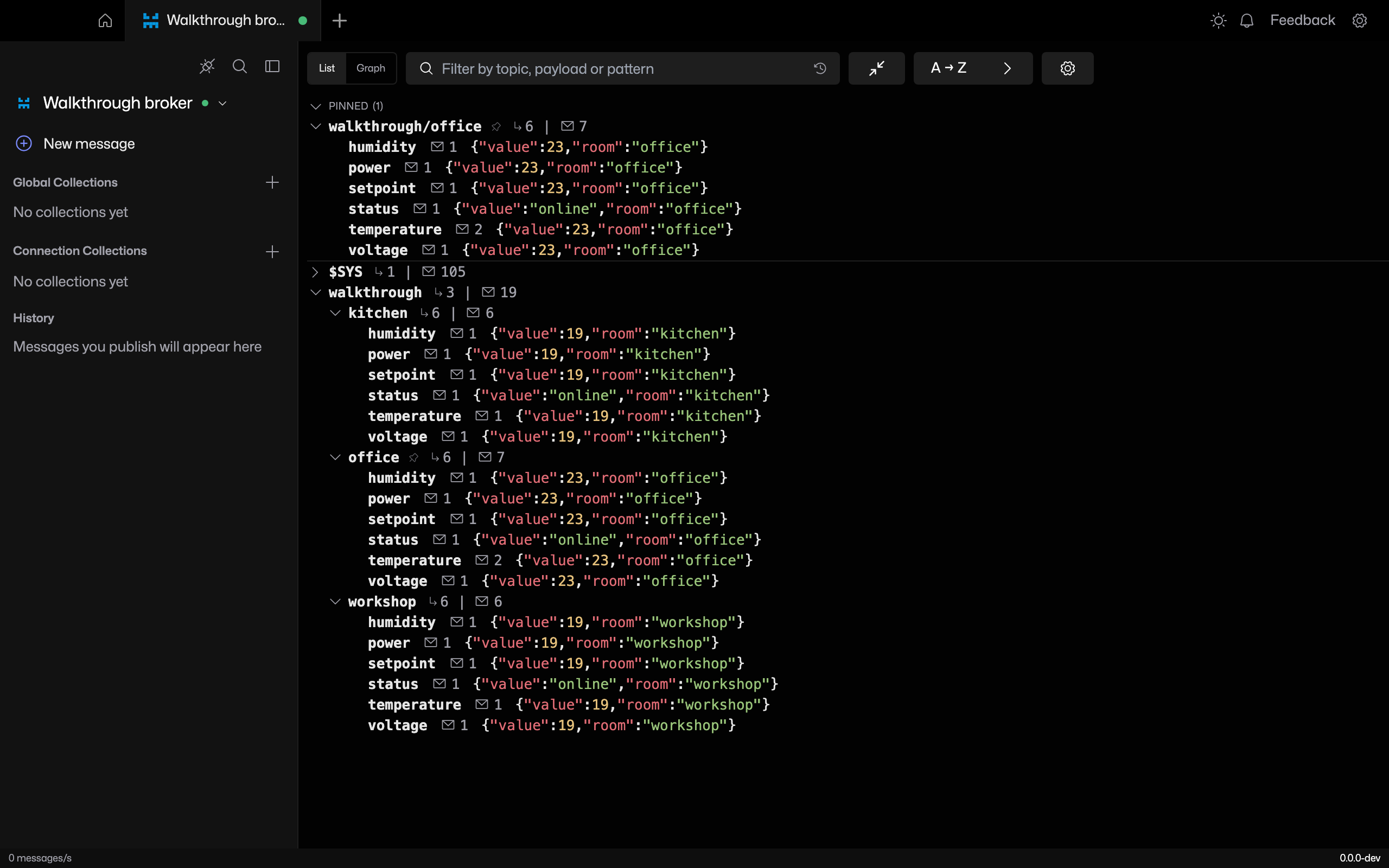
Right-click office and choose Pin topic. The branch appears in the pinned section above the ordinary tree. Use Unpin topic from its menu when you no longer need it.
If a topic is missing
Clear the filter and expand the relevant branch. Then check the connection’s subscriptions. A display filter cannot retrieve a topic the client has never received.