Decode text and image payloads
Read encoded text in the received-message panel without changing the broker’s message.
Before you start
Receive a topic carrying Base64 or hexadecimal text. For example, SGVsbG8gTVFUVA== is Base64 for Hello MQTT.
1. Decode Base64 text
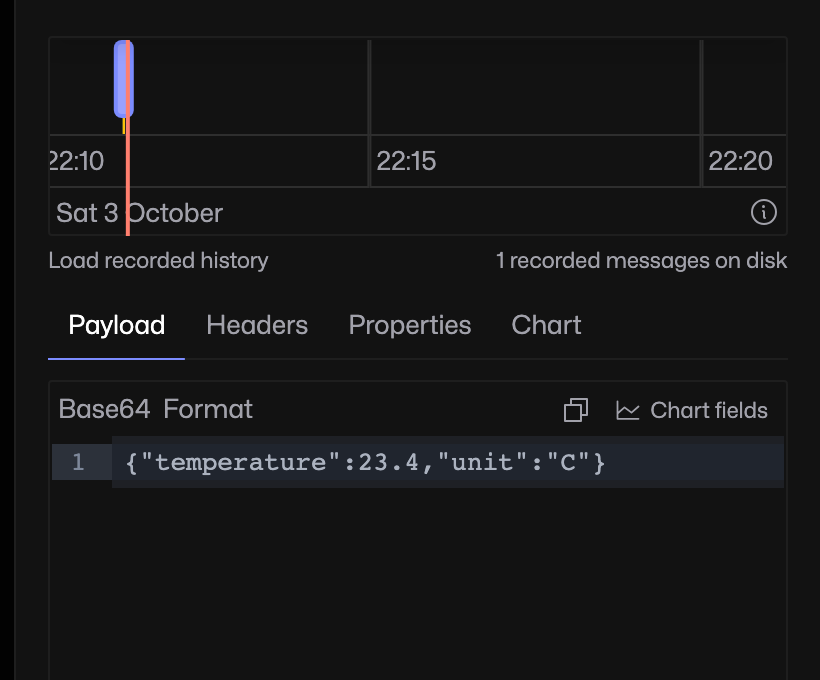
Select the topic, open Payload, then choose Base64 from Decode. The example contains a JSON temperature reading.
2. Decode hexadecimal text
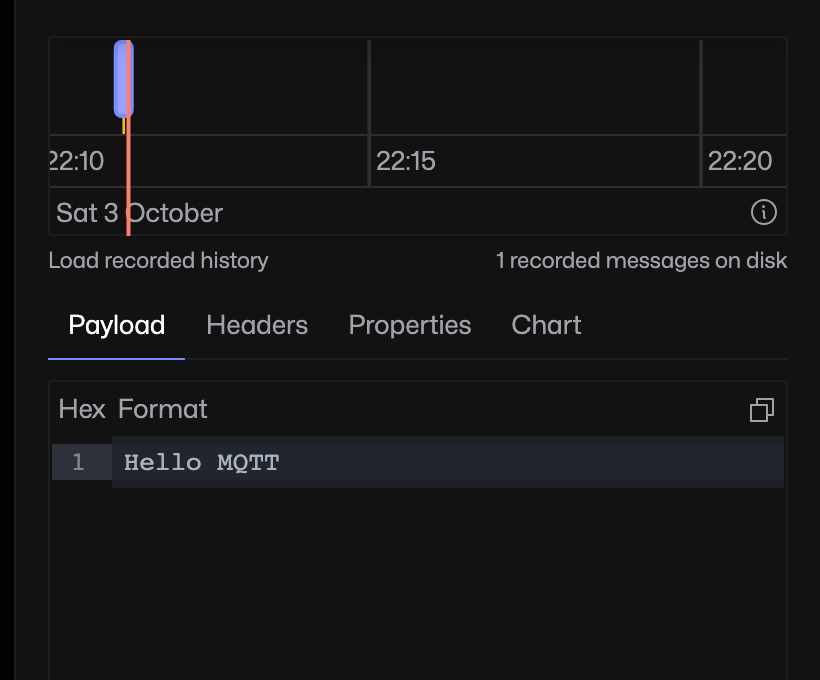
For a hex-encoded topic, open the decoding menu and choose Hex. The menu shows Decode or the current encoding. The text 48656c6c6f204d515454 becomes Hello MQTT. Choose No decoding to return to the original text.
3. View an image payload
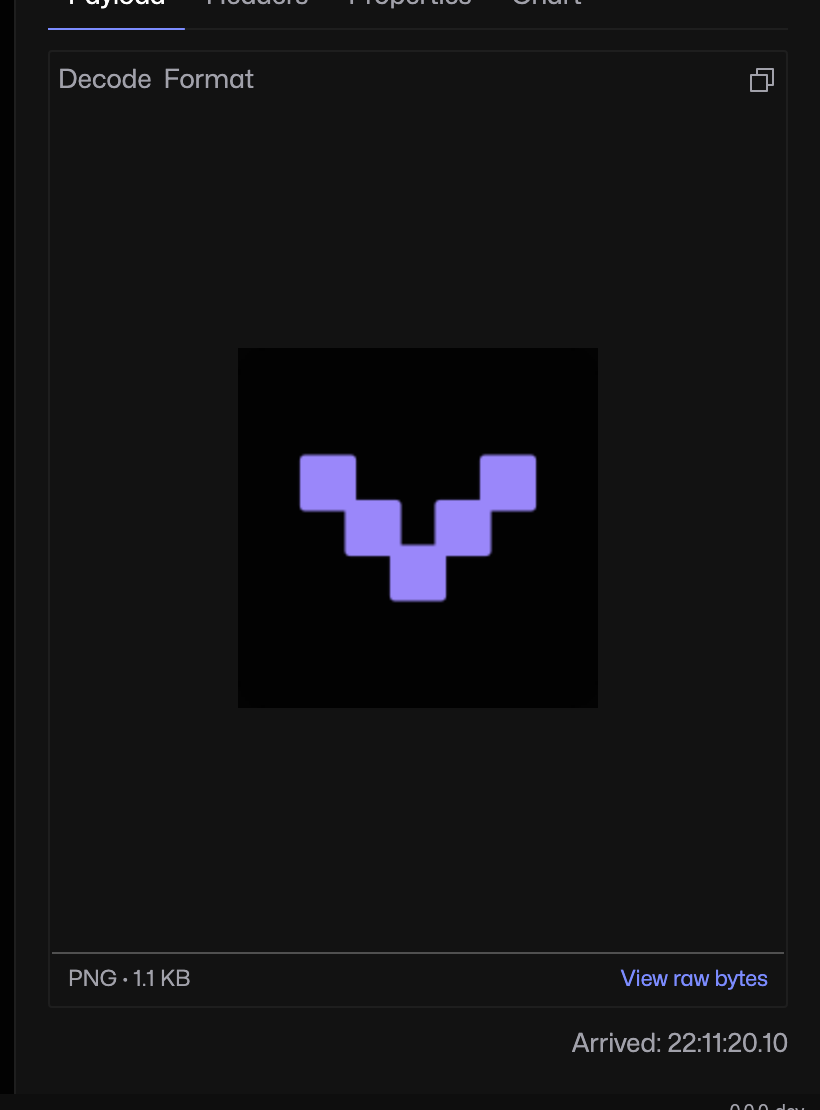
Select a topic carrying PNG, JPEG, GIF, WebP or BMP bytes. The payload panel detects the image and shows a preview. Click View raw bytes below it to inspect the underlying message.
Choose the encoding that was actually used
Base64 and Hex are encodings, not schema-based decoders. Use the Sparkplug guide for Sparkplug traffic. The publish editor’s Encode control is a separate operation applied when sending.