Diagnose a broker connection
Find a connection error, copy the relevant log lines and check recovery.
Before you start
Use a connection you can safely reconnect. The example first targets a closed local port, then restores the disposable broker’s listening port.
1. Open the connection logs
Open the connection name menu and choose View logs. The Client logs dialog shows connection and subscription activity for that connection.
2. Find and copy the error
Type a term in Filter logs. Toggle DEBUG, INFO, WARN or ERROR to show or hide a level. Click Copy to copy the lines matching your current filters.
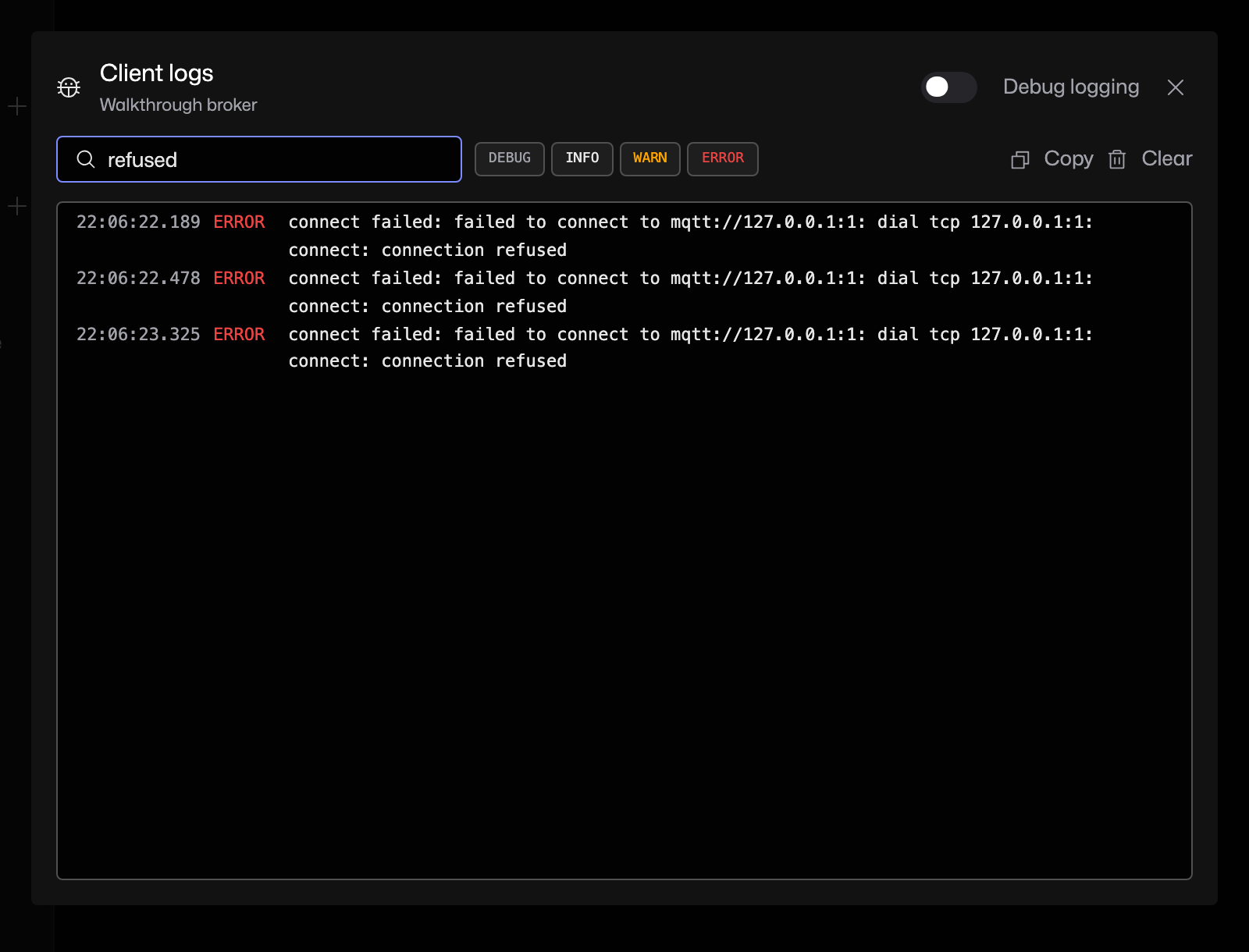
3. Correct the connection and retry
Close the logs. Open Edit connection…, disconnect if necessary and correct the host, port or other relevant setting. Click Connect, then reopen View logs and clear the text filter to inspect the new activity.
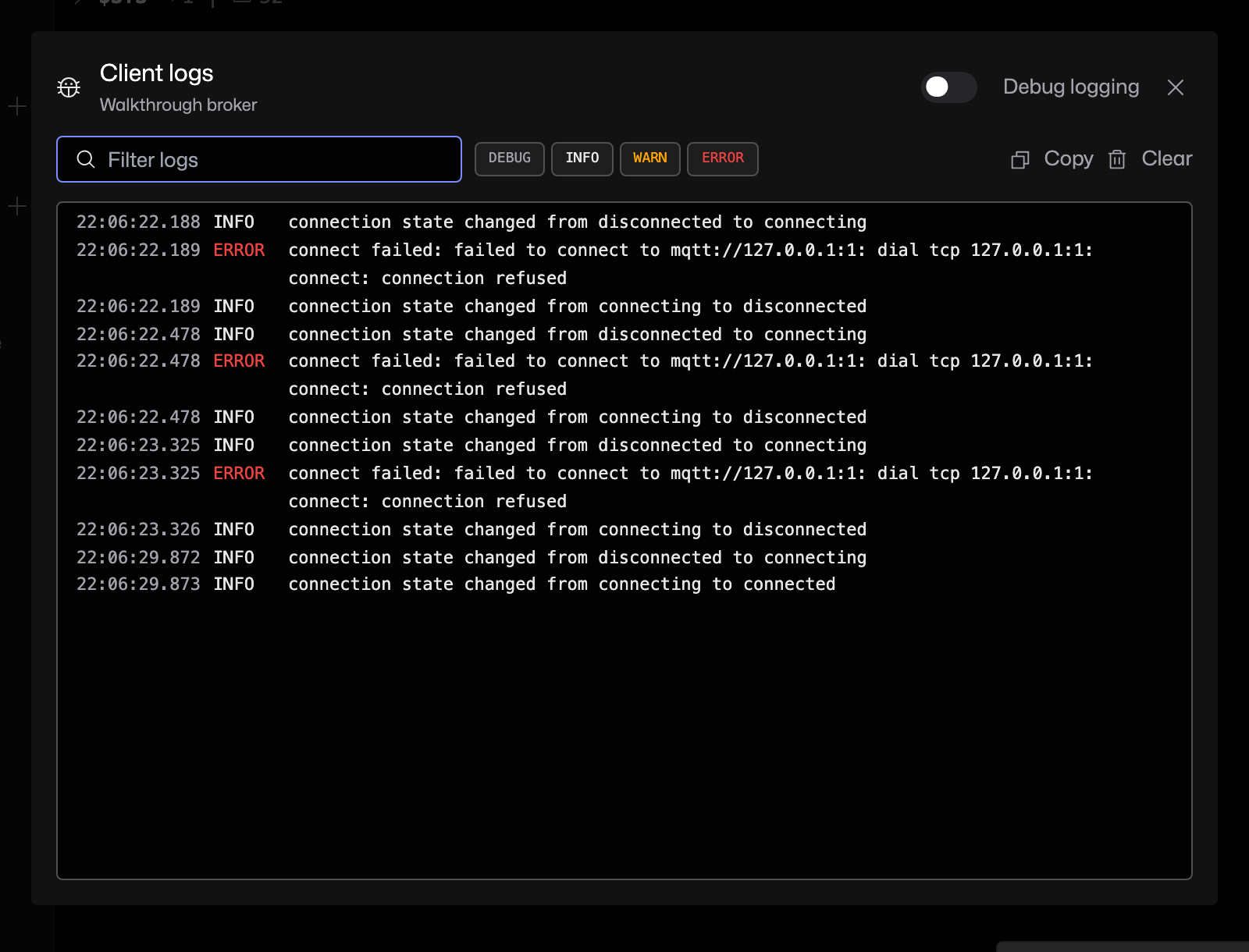
If the dialog looks empty
Clear the text filter and turn the level buttons back on. Enable Debug logging only when you need more detail. Clear removes the displayed log history; it does not repair a connection or clear MQTT messages.